
This article provides best practices and troubleshooting guidance for importing projects into Journey Maestro and Journey Manager. By following these recommendations, you can avoid common pitfalls such as library version conflicts, oversized project files, and missing components.
Applicable To
- Product: Journey Maestro, Journey Manager
- Versions: All versions
Prerequisites
- Access to Journey Maestro and Journey Manager with appropriate permissions.
Best Practices
When importing a Maestro project, follow these best practices to avoid library version conflicts and ensure a smooth setup:
Check for Organization Libraries in the ZIP
- If the project ZIP contains any organization-level libraries, remove them before importing. Note: Always export a backup before deleting any library.
Import Project Libraries Separately
- Handle library imports manually. Import required libraries from the project ZIP into the organization library instead of bundling them with the project.
Manage Organization Libraries Independently
- Organization libraries should typically be included only when setting up a new organization. For ongoing work, manage them independently from project-specific libraries to avoid version clashes.
Common Errors
Refer to the following advice on common errors that can be experienced during the project import phase, and how to resolve them.
Error 1: Problem Importing Library - 'version 1.0.0 already exists' in organization
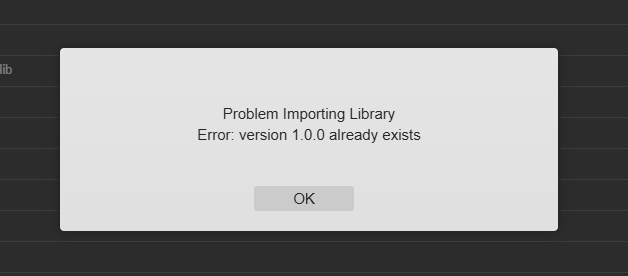
Cause: The project ZIP file includes a library that already exists in the organization with the same version.
Resolution: Follow the best practices above—remove the library from the ZIP and manage it separately.
Error 2: Problem Importing Library – 'library name not specified'
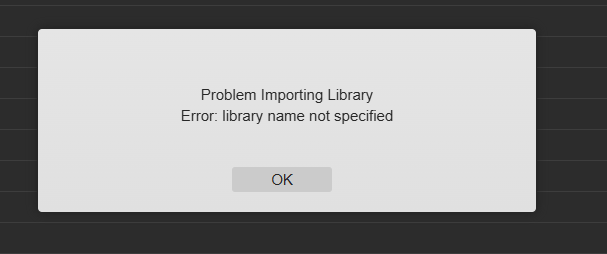
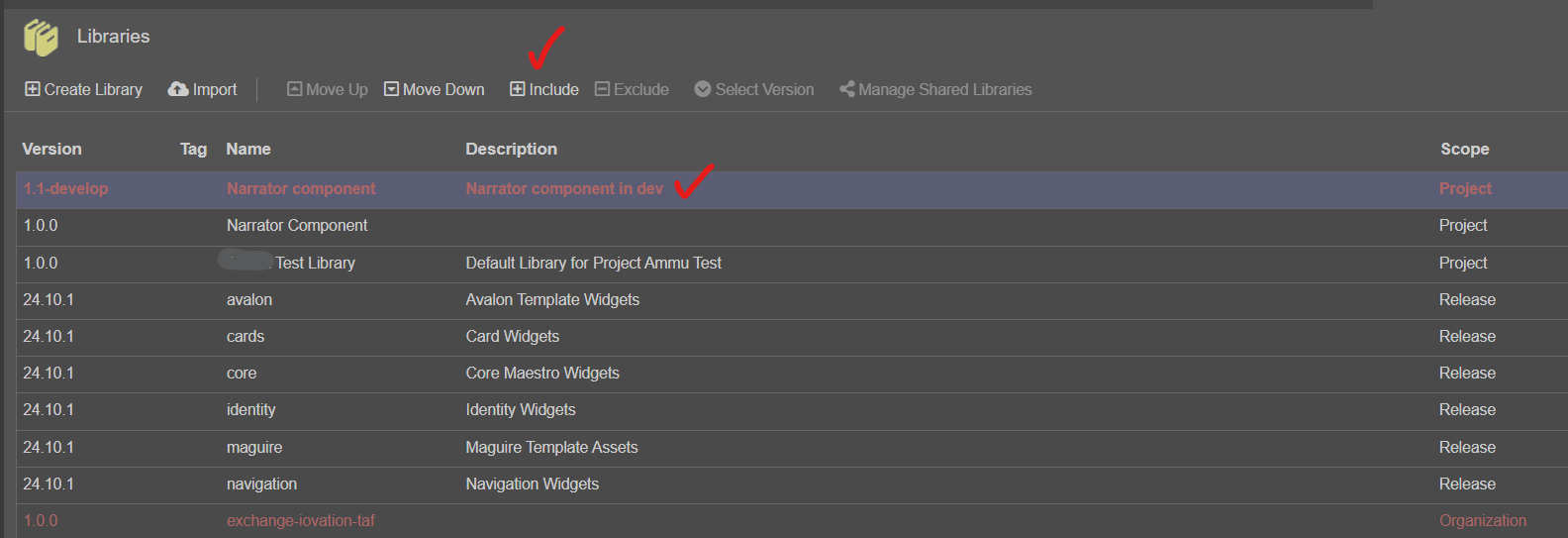
Cause: A component was not included during the library export but trying to upgrade a new version of the component.
Resolution: Select the missing component and click the Include button in the library. This ensures the component is available to forms. The screenshot below shows the missing component in red and the Include button.
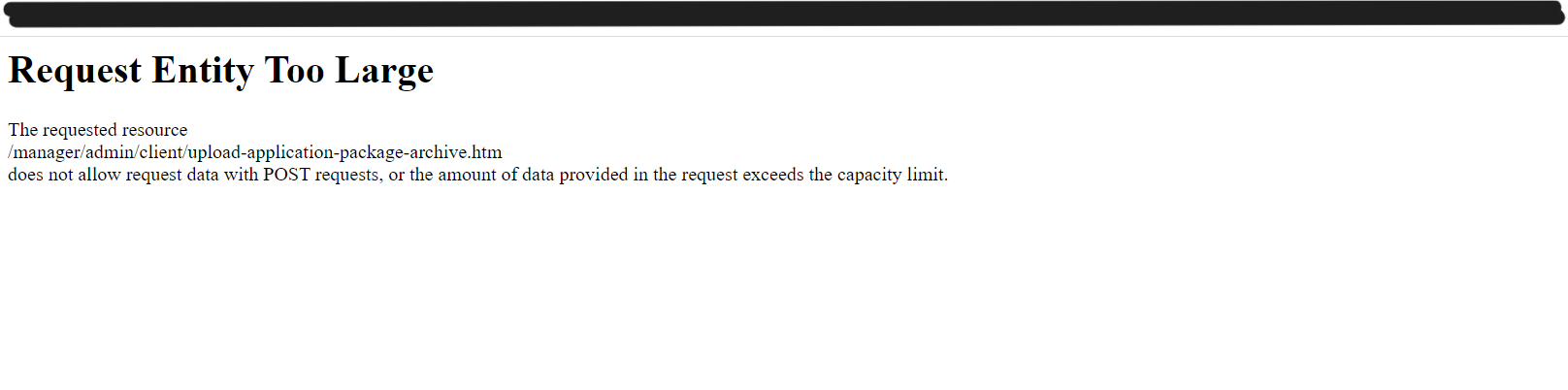
Error 3: 'Request Entity Too Large' in Journey Manager
----- -----
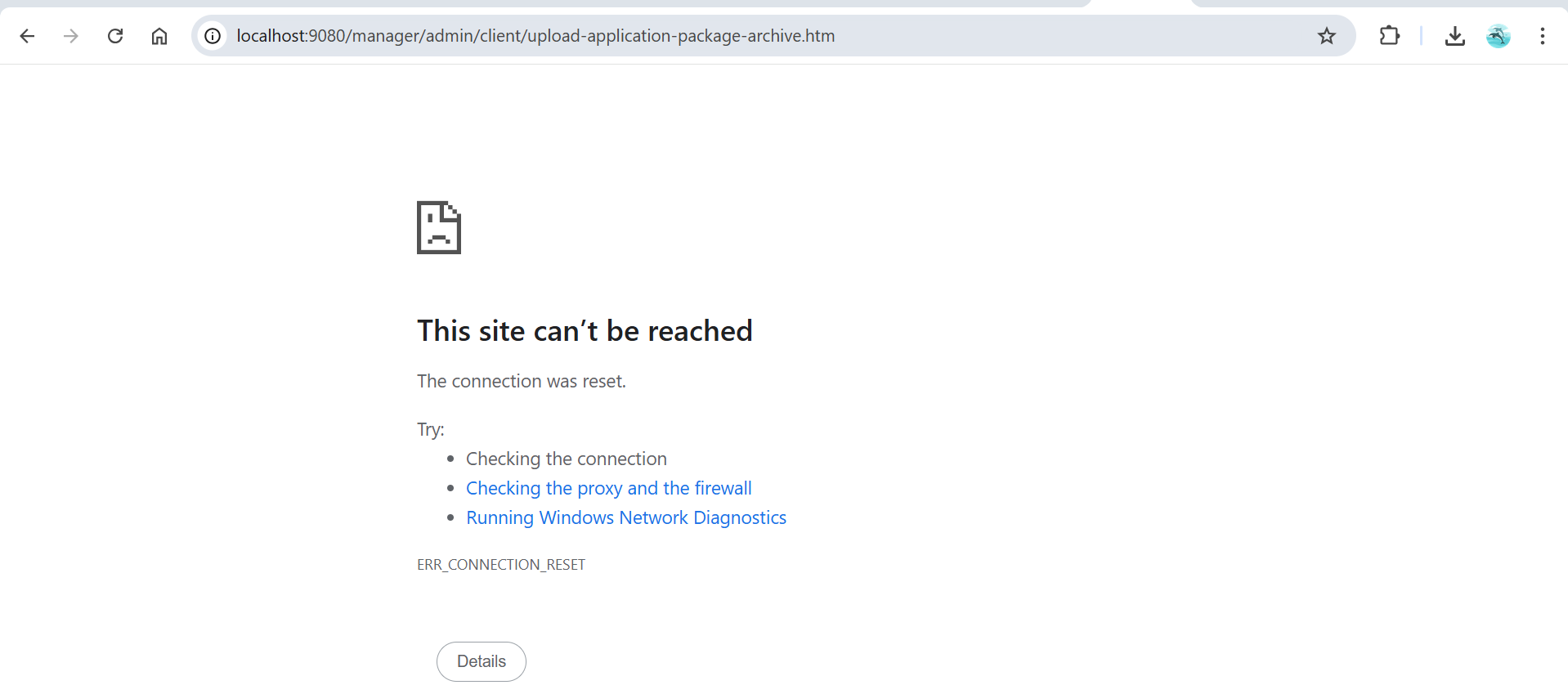
Cause: Project file size exceeds the max_allowed_packet value in server.
Resolution:
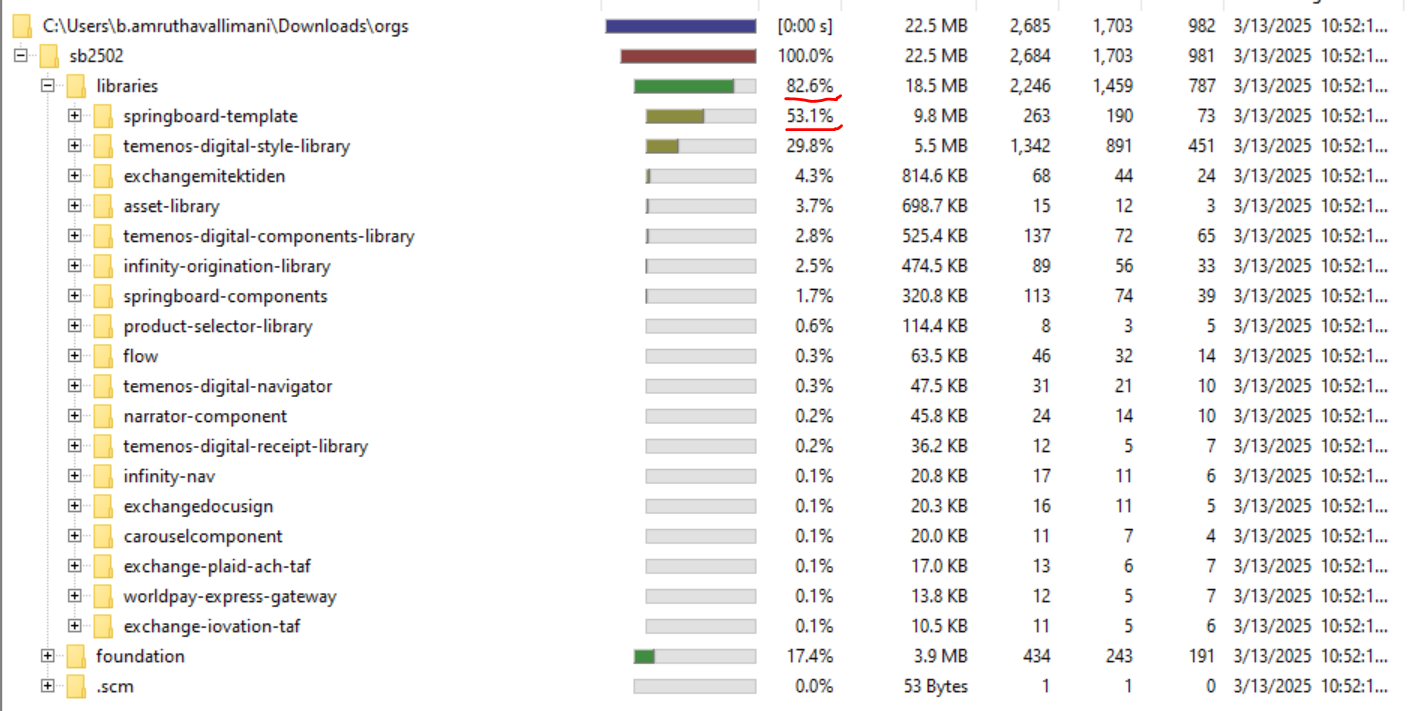
- Install any tools to analyze the project file structure, for example, WinDirStat, WizTree, DiskSavvy.
- Remove unnecessary files to reduce project size.
- Increase the max_allowed_packet value in the RDS/DB parameters. A recommended value is 104857600 (100MB), though it can be set higher if needed.
- Restart Journey Manager after applying the changes.
Error 4: 'Request Entity Too Large' / Internal Server Error in Journey Maestro
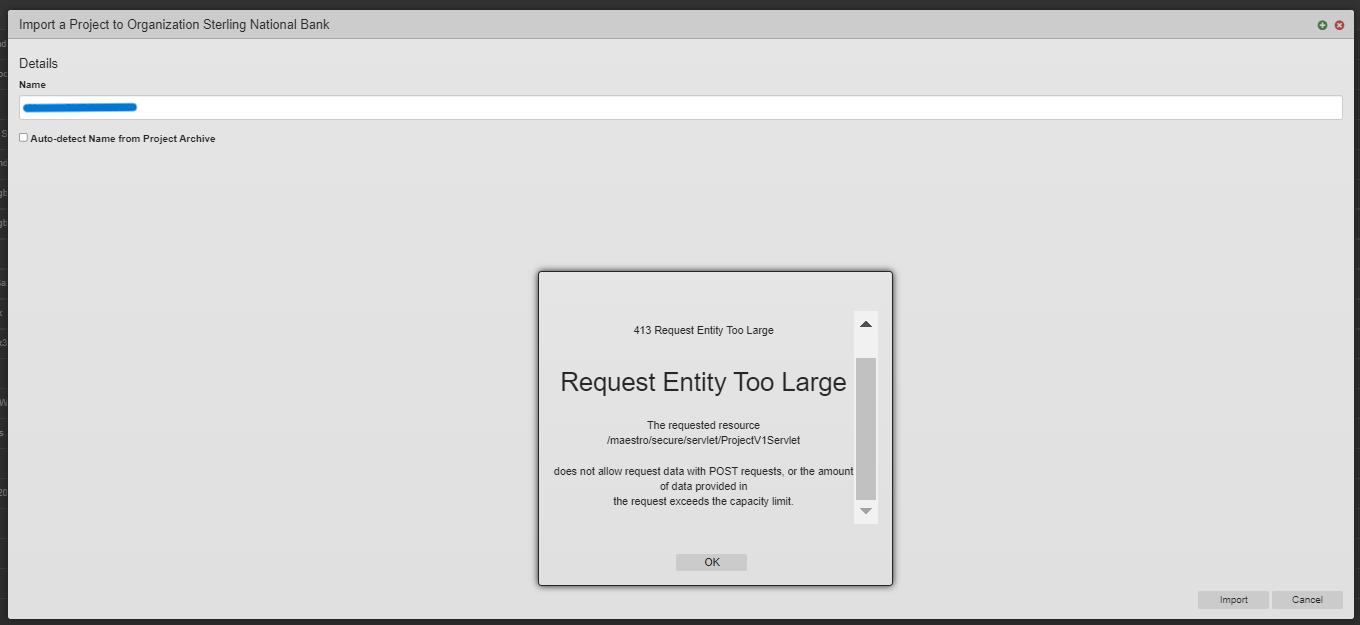
Cause: Large project files or excessive versions stored in Maestro.
Resolution:
- Use any tools to identify large files, for example, WinDirStat, WizTree, DiskSavvy.
- The default attachment size in Maestro is 50MB. Remove outdated form versions to free up space.
- Recommended Strategies for removing files:
-
- Limit Design and Library Versions
Retain only the latest two versions of each design and library. This helps significantly reduce project size and keeps the workspace cleaner. - Separate Templates and Components
Move templates and components into a dedicated style project. This approach isolates shared assets, allowing them to be updated independently and only published to the organization library once finalized. - Adopt Source Control (SCM)
Use a version control system such as Git with branching. This provides a flexible, collaborative workflow while avoiding excessive duplication of projects. - Maintain Master and Working Projects
Keep a single master project for finalized versions and a slim working project for active development. Once changes to a form, component, or design are complete, export the updated version from the working project and import it back into the master project. - An example screenshot for the project disk-space visualization:
- Limit Design and Library Versions
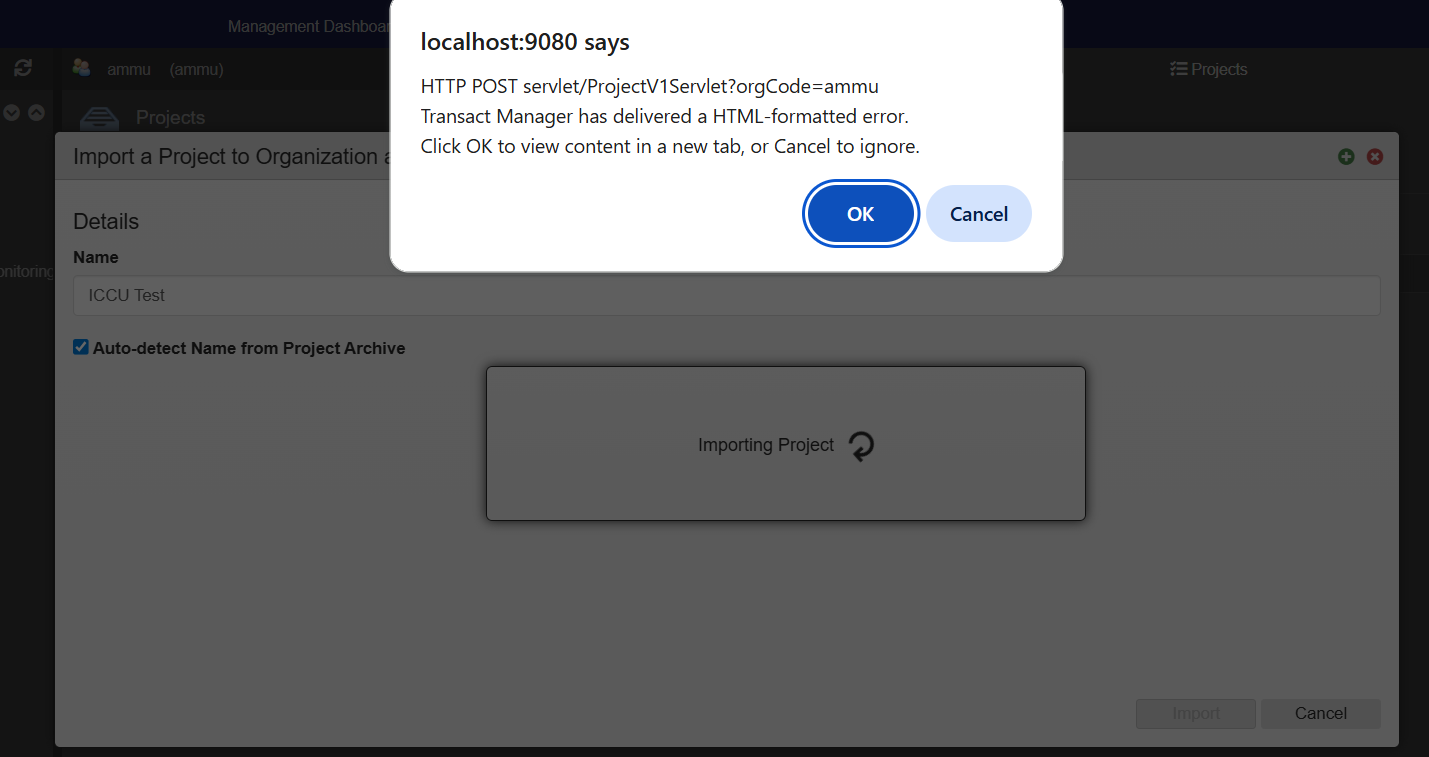
Error 5: Missing Forms After Successful Import
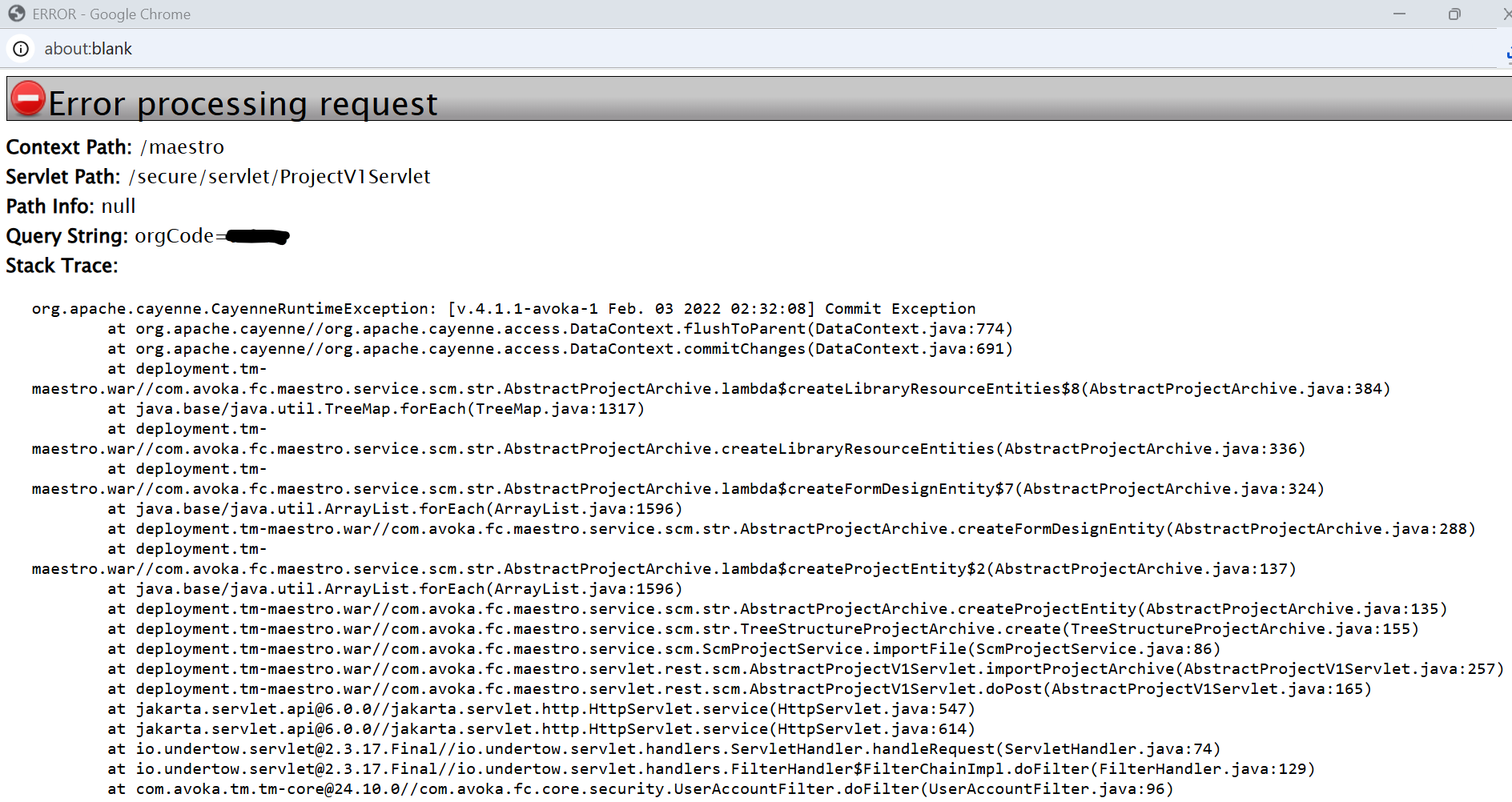
When importing a project in Maestro, some forms fail to import and can display the errors below:
----- -----
----- -----
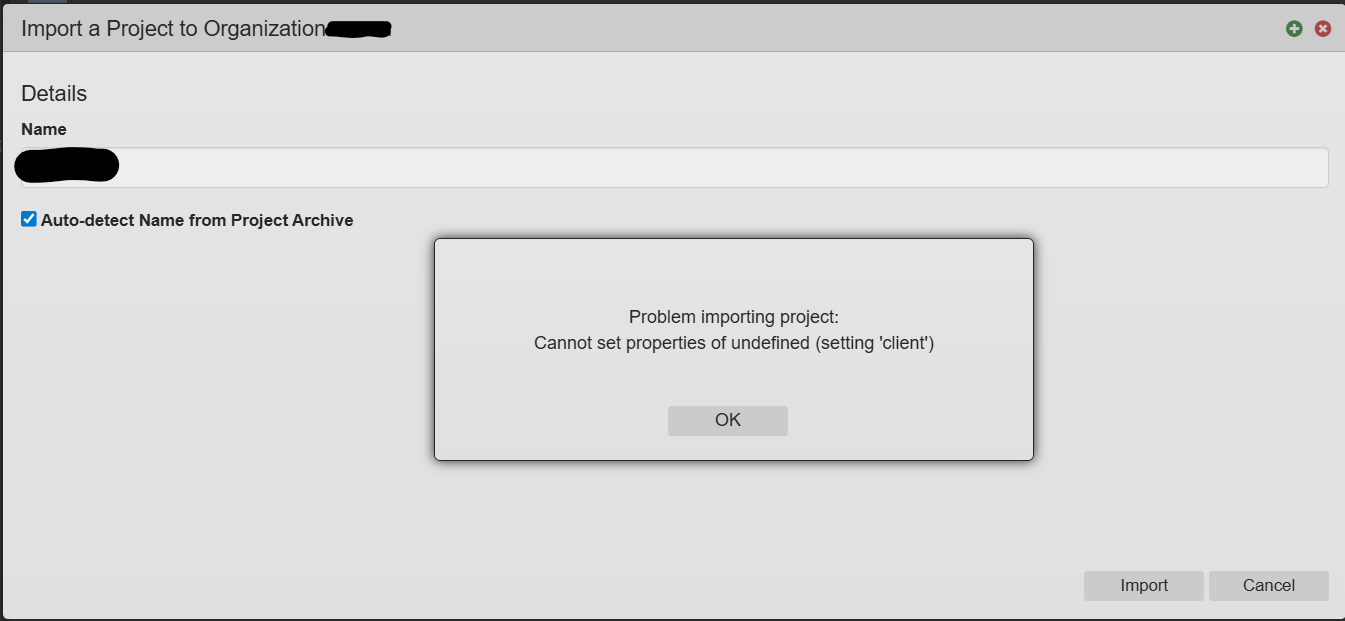
Cause: If the SVG images in your project contain emojis, they will cause import issues.
Resolution: Delete the problematic SVG files and re-import the project.