Data XML Location
MaestroThe UI design product. | Form Builder | 17.10 This feature was updated in 17.10.
TO DELETE
MOVED to Integration pane
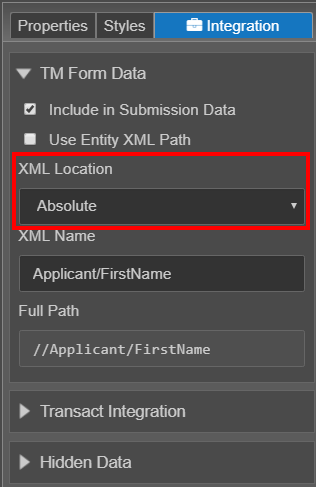
Manager allows you to specify the following XML Locations for some components:
- Relative - when the component is dragged between sections and blocks, it assumes a hierarchy relative to its location and thus break the data model enforcement.
- Absolute - to guarantee the location of the XML data upon submission of the form, you must ensure that in all cases, other than inside repeating elements, where the component is not associated with an entity, that the XML location is set as Absolute.
To change the XML Location of a component, follow these steps:
- Open a form and select a component.
- Click the Integration tab.
- Expand TM Form Data and select Include in Submission Data.
- Clear the Use Auto-generated XML Name checkbox.
- Select Absolute from the XML Location dropdown list.
- Update the XML Name.
- Click Build and Render Form to see how this rule is displayed when the form is built and rendered.
Next, learn about Form Xml Data Payload.