
This article provides details about issues resulting from special characters being embedded in template image names, resulting in CSS modifications not being rendered after publishing in Journey Maestro.
Applicable To
- Product: Journey Maestro
- Module: Template
- Versions: All versions
Prerequisites
- Access to Journey Maestro with permissions to edit and publish templates.
- Basic knowledge of using the browser console to check for errors.
Problem
When updating CSS styles in a template for any component, the changes are not reflected after publishing the template.
Steps to Reproduce
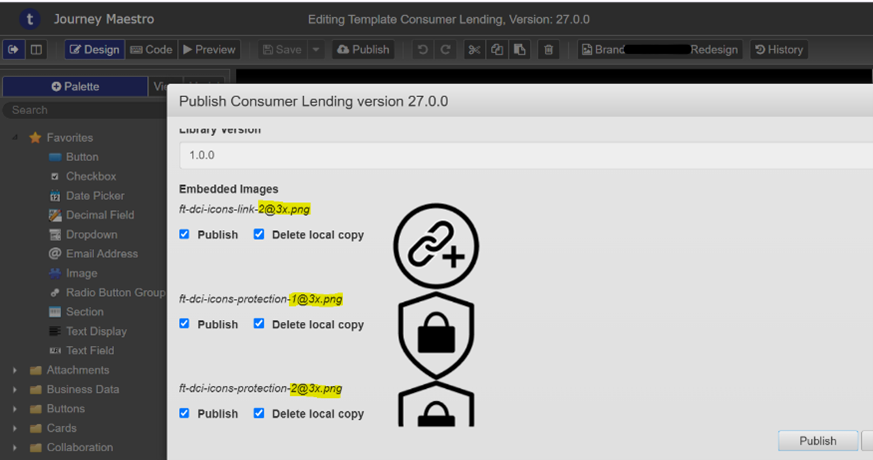
- Modify the CSS of any component at the template level, then add an image in template resources with @ or % in its name and publish the template.
- Observe that the CSS changes are not applied.
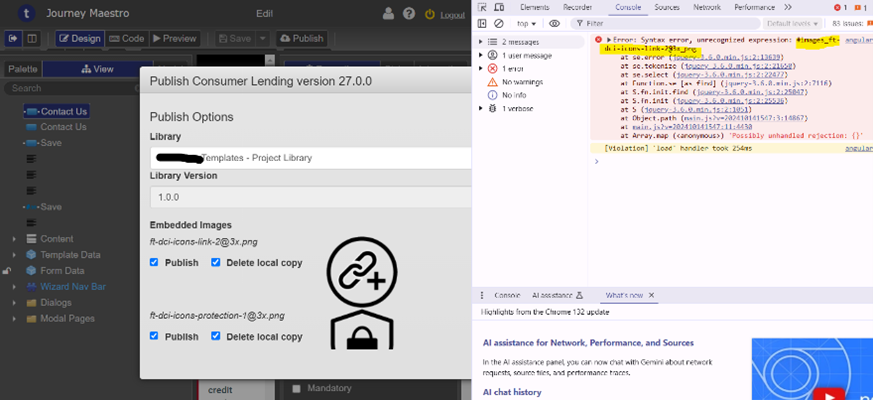
- Open the browser console during publishing and review the errors.
Procedure
The template publishing process compiles CSS, JavaScript, and image files. Using special characters such as @ or % in image names can cause publish failures, preventing CSS updates from being applied.
----- -----
Resolution
- Review all image references in the template resources and remove invalid characters (such as @ and %).
- Republish the template.
- Confirm that CSS changes are successfully applied after the publish completes.
Notes
- Always check the browser console for errors when template publishing fails.
- If the template is published successfully, the publish pop-up window will close automatically.
- It’s always recommended not to use the special characters for the images naming.